
Appearance
Reply and collaborate
Reply to a customer
- Open a conversation in Conversations or Emails.
- In the message composer, select Reply.
- Write your reply. Add any attachments or other options supported by the channel.
- For email, check the recipients and any CC or BCC addresses before sending.
- Select Send.
To insert a saved reply, type / followed by its shortcode and choose a canned response. Review the message and fill in any missing details before sending.
For WhatsApp, you can send an ordinary reply within 24 hours of the customer’s latest message. If the window closes, select an approved WhatsApp template available on that channel. Preview it and fill in any required variables before sending.
Start a new chat or email
- Open Conversations and select the + button labeled Start a new chat. For email, open Emails and select Send a new email.
- Search for the contact and verify their details.
- Select the channel to send from. The list depends on your channel access and the contact’s available destinations.
- Write your message. For email, enter a subject and review recipients. For a new WhatsApp message, choose an approved template and fill in its variables.
- Select Send, or use the send action in the template dialog.
Add a private note
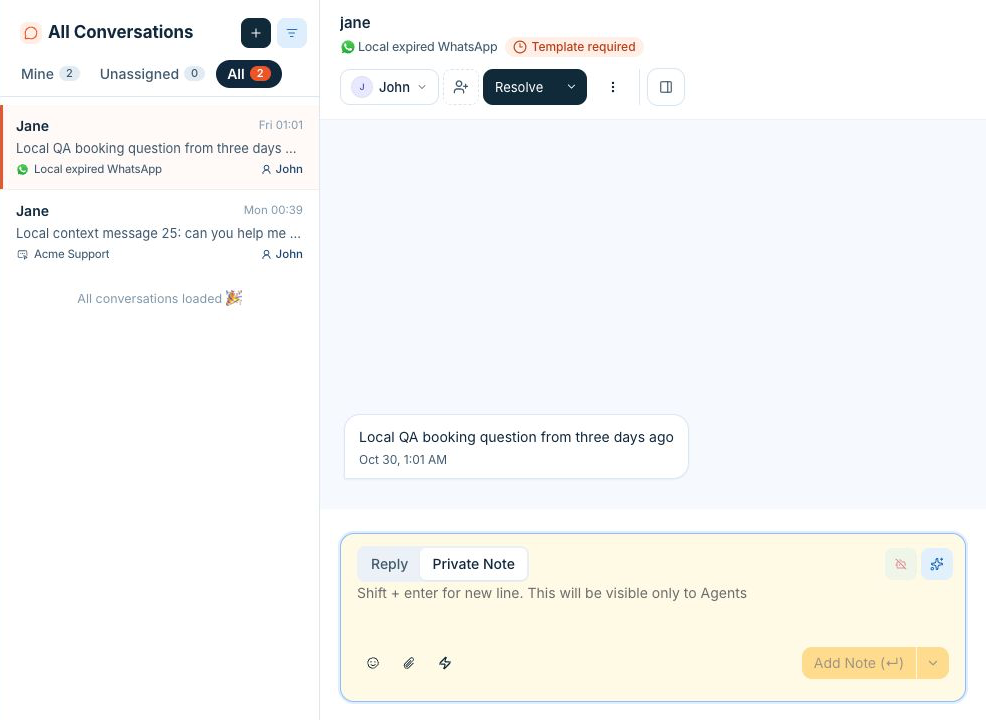
- Open the conversation and choose Private Note in the composer.
- Write a handoff or add context for teammates. Type @ to mention a teammate when you need their attention.
- Select Add Note. The note stays in your team’s conversation history.
To post a private note later, use the schedule action in Private Note mode, then check the date, time, and time zone. Open Scheduled private notes from the composer to edit or cancel a queued note.
Add a collaborator
In the conversation header, open Collaborators and choose Add collaborators. Find a teammate and add them to the conversation. Collaborators can follow the thread and reply. Use the assignment control when ownership needs to change.